
Overview
With iGurbani v3.0 and above, users have the ability to export or import their favourites. On iOS this is done via Apple’s file app and on Android is done by accessing the shared documents folder.
EXPORT
iOS
- On a device with iOS 11+, open the Files app.
Use the Files app on your iPhone, iPad, or iPod touch
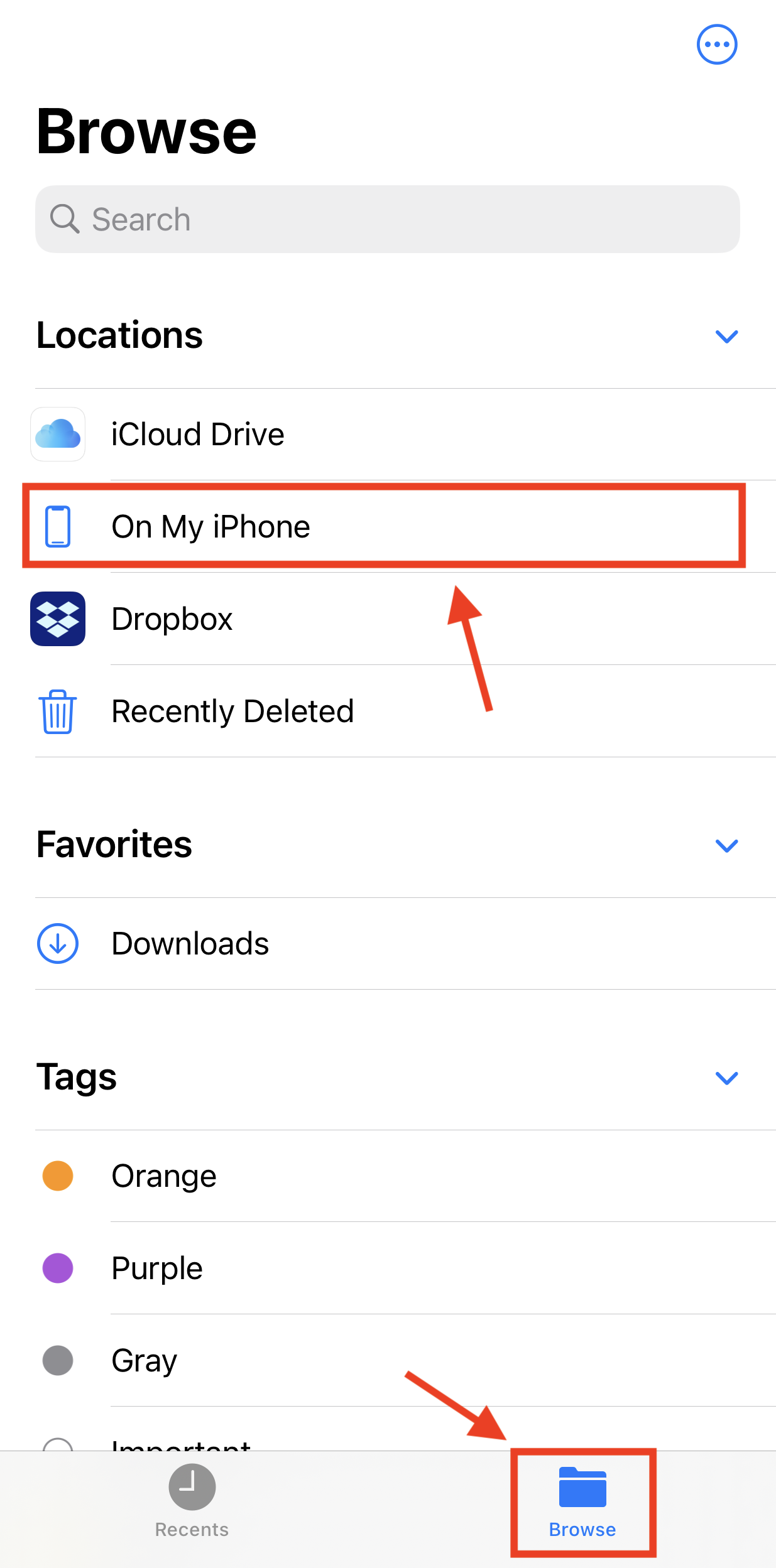
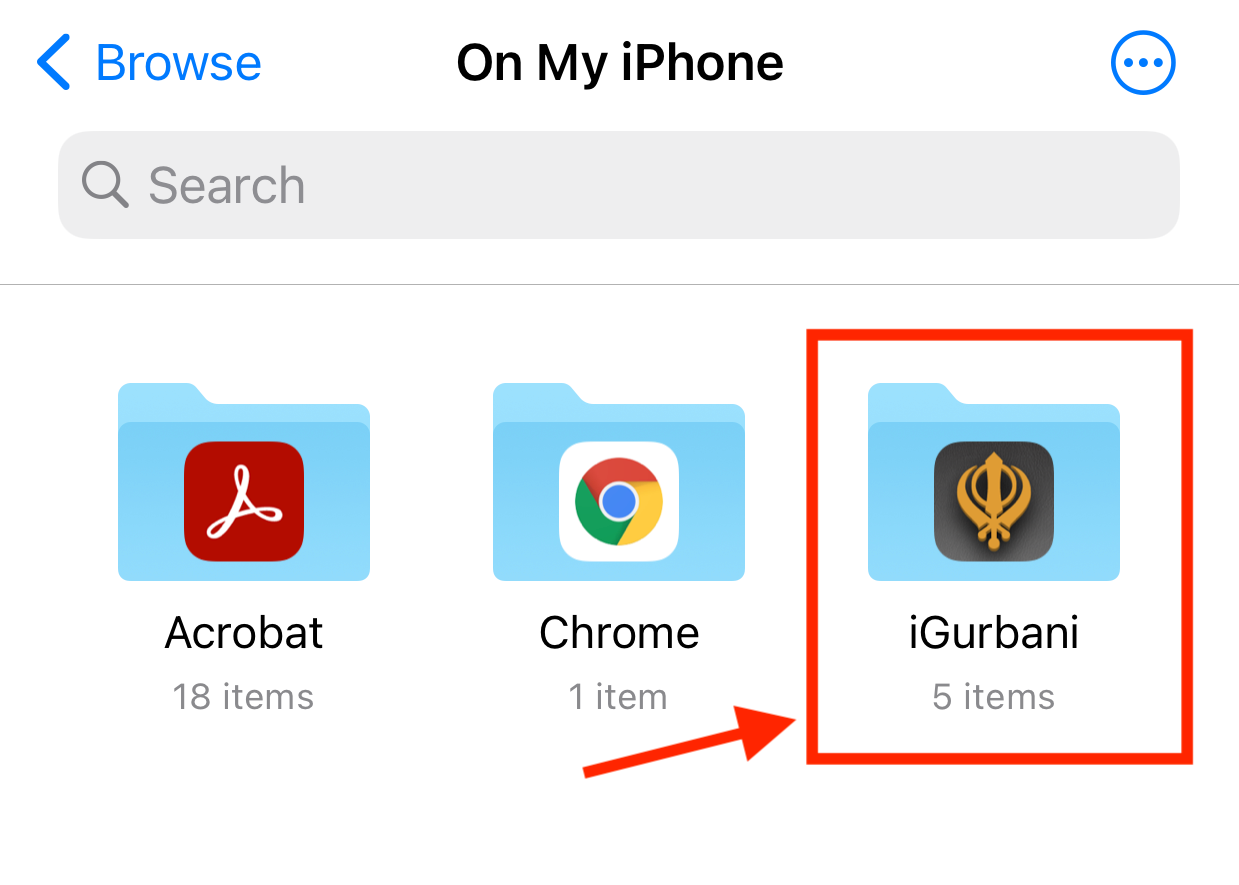
- In Files, tap the browse menu at the bottom of the screen and tap On My iPhone/iPad.
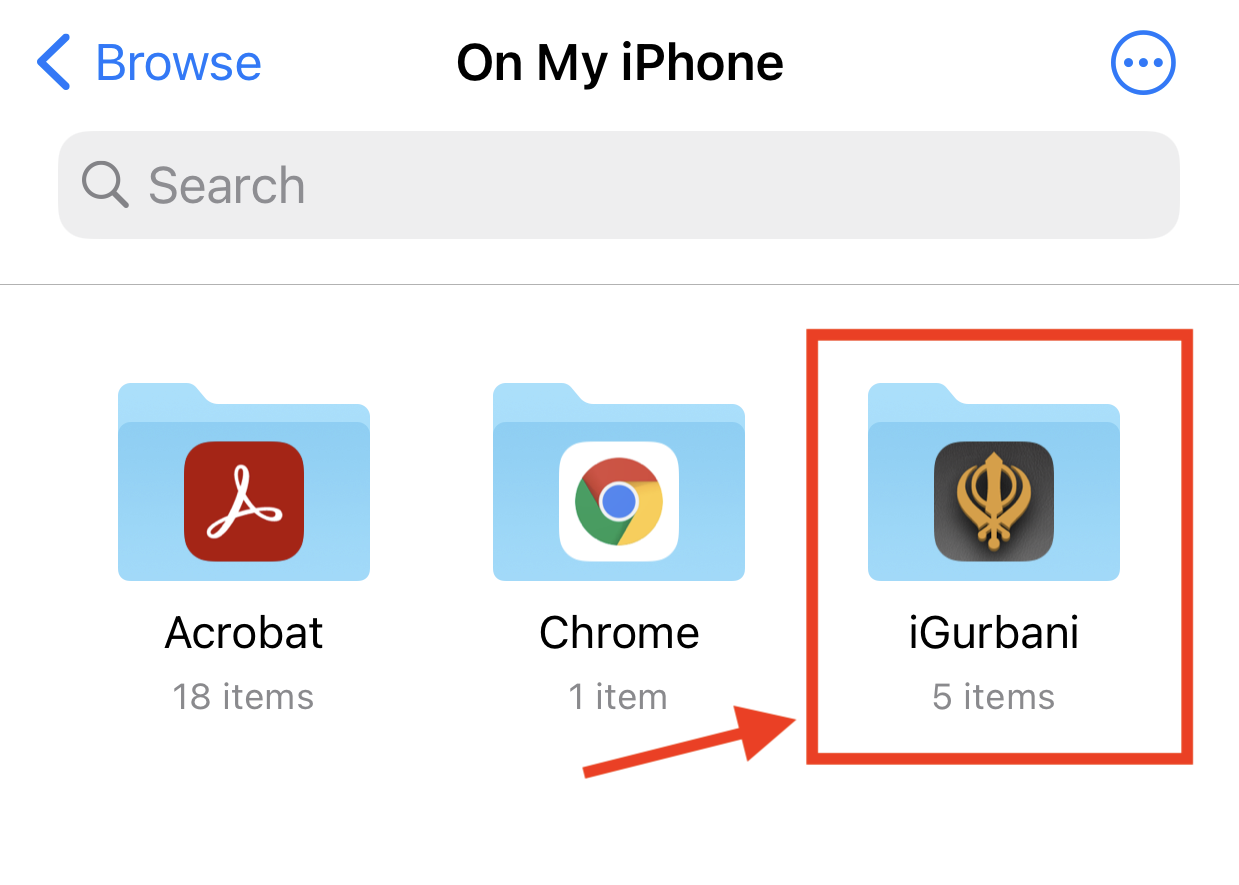
- Locate the iGurbani folder and tap to open.
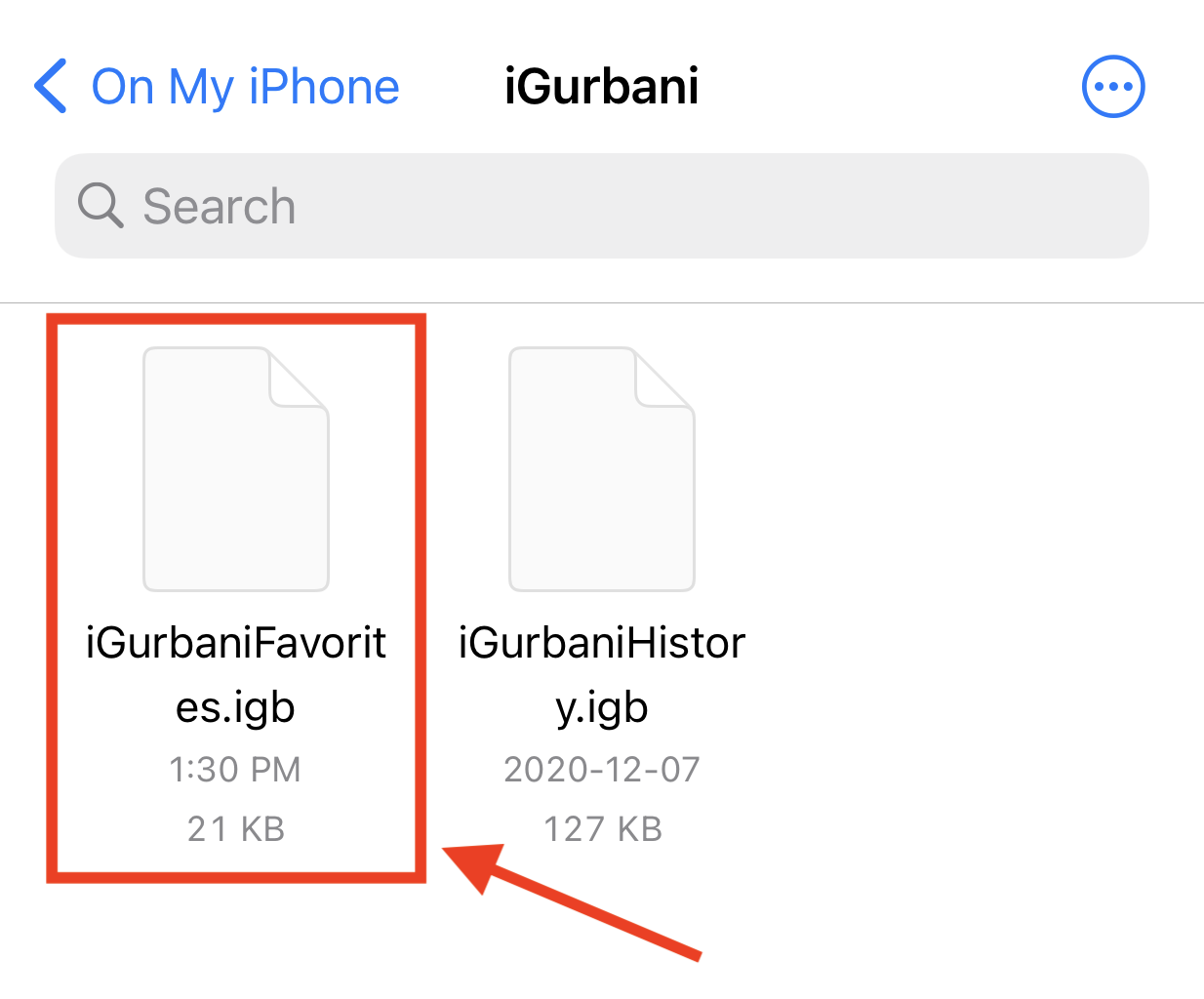
- Inside the iGurbani folder tap and hold the iGurbaniFavourites.igb file. You will be presented with various options to store this file as a backup.
Note: You can backup this file in various ways
1. Email it to yourself
2. Copy it to another folder
3. Copy it to another app like Dropbox
IMPORT
iOS
IMPORTANT: Before starting please make sure iGurbani is not running.
- Locate the iGurbaniFavourites.igb file that you saved.
- The goal is to copy the file back into the Browse > On My iPhone/iPad > iGurbani folder.
- One way of doing this is to find the file within the Files app then tap and hold to reveal the action menu. You can then do a copy.
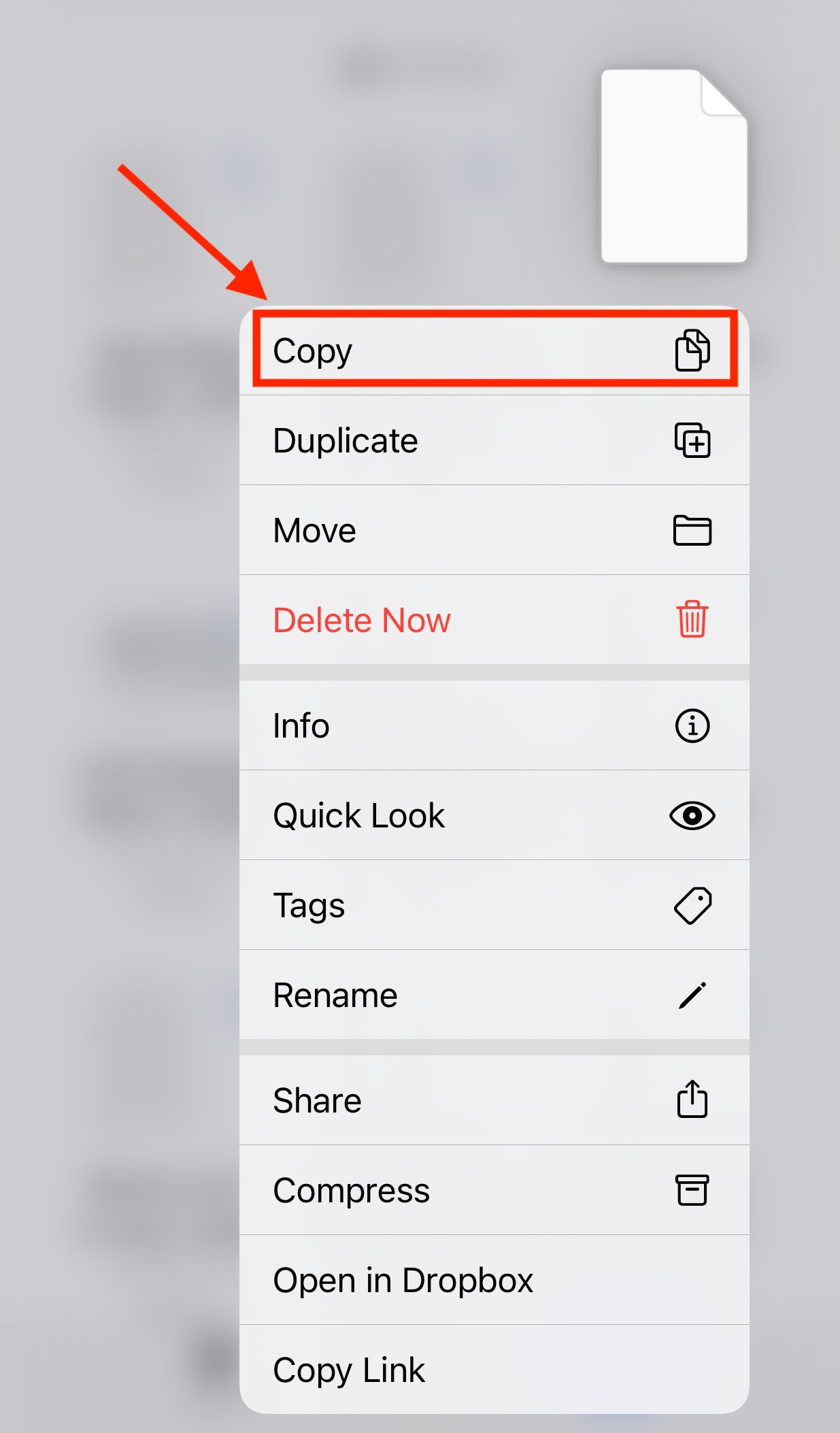
- Navigate to Browse > On My iPhone/iPad > iGurbani folder
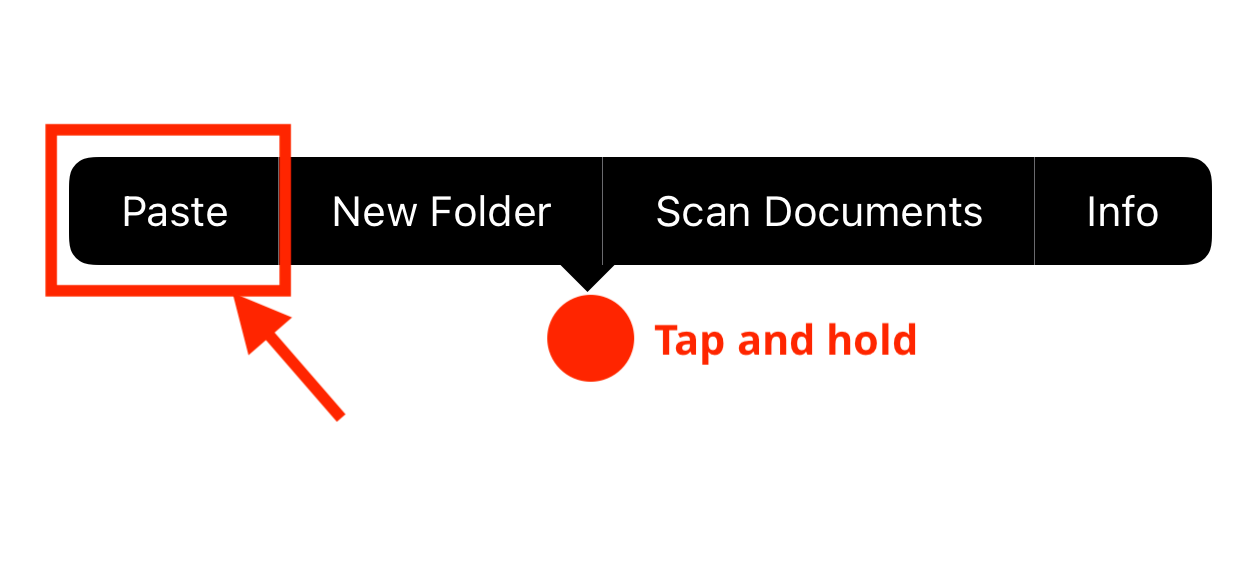
- In the open space tap and hold to reveal the action menu and then paste.
- Now you can launch iGurbani and the app will import the favourites.